Staying connected
Using your phone as a laptop hotspot: data use and settings
Video calls and cloud sync use most of your hotspot data. Published Zoom, Meet and Teams bandwidth turned into GB per hour, the iPhone and Android hotspot steps for a travel eSIM, and the Windows and Mac settings that stop updates and backups eating your plan.
By EzyHop teamPublished Last updated 11 min read
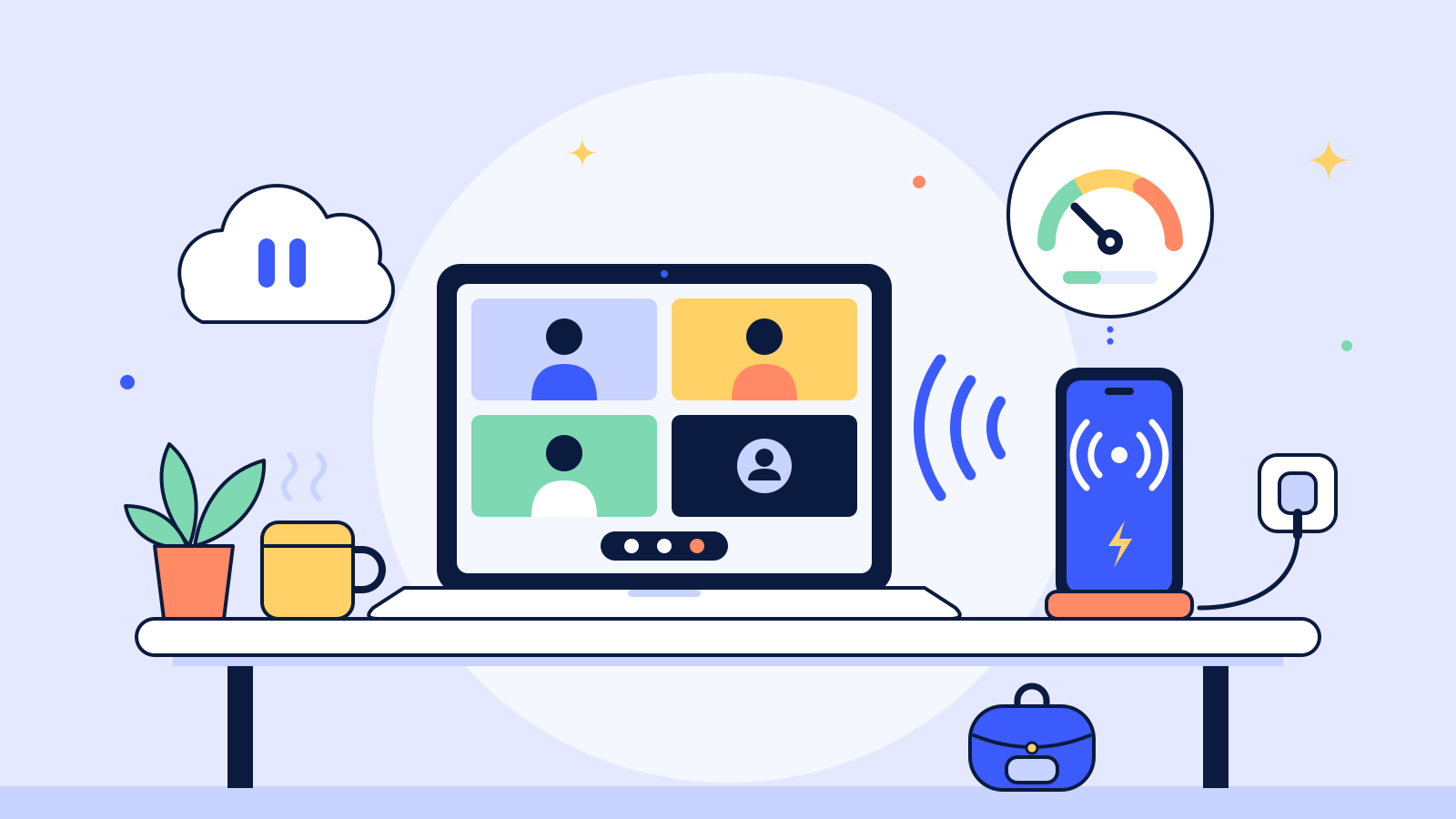
Video calls and cloud sync use most of the data when you work on a laptop through your phone's hotspot. Going by the bandwidth Zoom, Google Meet and Microsoft Teams publish as of October 2026, an hour of group video at their recommended quality comes to roughly 2 to 3 GB once you add upload and download, while the same hour with cameras off stays under 100 MB.
The other big drain is the laptop itself. It treats your phone like home Wi-Fi, so a system update or a folder of videos syncing to Dropbox can burn through gigabytes before your first call. Tell it the connection is metered, pause sync, and then start work.
Before you tether: a two-minute checklist
- The travel eSIM is your phone's data line, with Data Roaming on for that line.
- Your home SIM stays on for calls and texts, with its own Data Roaming off.
- Cellular data switching between your two lines is off.
- Hotspot is on, with a password you've set yourself.
- The laptop treats the hotspot as metered (Windows) or uses Low Data Mode (Mac).
- Dropbox, OneDrive and other sync apps are paused.
- The phone is charging from a wall plug, out of direct sun.
- You know where to read your data counter.
Check one thing before you buy any plan: sharing data with another device depends on the plan and the local network. Google says some carriers limit tethering or charge extra for it, and Apple says Personal Hotspot needs a carrier that supports it. If you'll work from a hotspot, ask us before you buy (the hotspot question in our FAQ has the link) and we'll check the plan for you.
Turn on the hotspot on your phone
iPhone
Apple calls it Personal Hotspot. The steps from Apple's guide to sharing your iPhone's connection and its Personal Hotspot support page:
- Open Settings, tap Cellular, then Set Up Personal Hotspot, and follow the prompts. After that, it lives under Settings, Personal Hotspot.
- Turn on Allow Others to Join. To change the password, go to Settings, Cellular, Personal Hotspot and tap Wi-Fi Password.
- On the laptop, pick your iPhone from the Wi-Fi list. The hotspot uses your phone's name, which you can change in Settings, General, About, Name.
With a travel eSIM, the line matters more than the steps. On a Dual SIM iPhone, Apple says Personal Hotspot uses the line you've selected for cellular data. Go to Settings, Cellular, Cellular Data and make sure the eSIM is ticked, or your laptop will run on your home plan. Depending on the region, Apple labels that menu Mobile Data instead of Cellular.
On the same screen, look at Allow Cellular Data Switching. Apple's Dual SIM guide says that with it on, the iPhone uses data from both plans depending on coverage and availability. That's handy on a normal day. During a long tethering session it can put laptop traffic on your home SIM, so turn it off until you're done.
Android
On recent Android versions, Google's hotspot help page uses Quick Settings: swipe down from the top of the screen, touch and hold Hotspot, then turn on Wi-Fi hotspot. Tap the hotspot name or password on that screen to change it. Google notes that some of these steps only work on Android 14 and later.
On a Pixel, the full path is Settings, Network & internet, Hotspot & tethering, Wi-Fi hotspot, per Pixel Help. Two details from that page:
- If Data Saver is on, turn it off, or Wi-Fi tethering won't work.
- Turn off hotspot automatically switches the hotspot off when nothing is connected, which saves battery.
As on iPhone, the eSIM has to be the SIM chosen for mobile data. On a Pixel that's under Settings, Network & internet, SIMs, where you'll also find Automatic data switching (Pixel dual SIM help). Samsung and other brands name their menus a little differently, but the Quick Settings tile works the same way.
Make the laptop act like it's on a meter
Laptops assume Wi-Fi is unlimited. A phone hotspot looks like any other Wi-Fi network, so you have to tell the laptop otherwise.
Windows: turn on Metered connection
From Microsoft's metered connections page:
- Windows 11: Settings, Network & internet, Wi-Fi, select the hotspot you're connected to, then turn on Metered connection.
- Windows 10: Settings, Network & Internet, Wi-Fi, select the network, Properties, then turn on Set as metered connection.
Once it's on, Windows Update downloads only priority updates, Microsoft Store app downloads may pause, and offline files may not sync automatically. Also check that Download updates over metered connections is off. On Windows 11 it's under Settings, Windows Update, Advanced options; on Windows 10, under Update & Security, Advanced options. Microsoft says OneDrive pauses by itself when your PC is on a metered network (OneDrive help), so this one switch does two jobs.
Mac: turn on Low Data Mode for the hotspot
In System Settings, click Wi-Fi in the sidebar, then click Details next to your phone's hotspot and turn on Low Data Mode. Apple's Mac Wi-Fi settings guide describes it in one line: it reduces your data usage over that Wi-Fi network. The setting applies to that network only, so your home or coworking Wi-Fi isn't affected.
Two more Mac settings to check before a long day on the phone:
- Automatic updates. System Settings, General, Software Update, then the Info button next to Automatic Updates. With Download new updates when available off, macOS stops fetching updates without asking (Apple's update settings). Turn it back on once you're on fiber.
- Ask to join hotspots. In the same Wi-Fi settings, a Mac can automatically join a Personal Hotspot when no known Wi-Fi is around. Set it to Ask to Join if you don't want your laptop sliding onto your phone's data in the background.
One cable habit to drop: Apple says that if Personal Hotspot is left on, a computer you plug your iPhone into for charging might connect to the hotspot over USB. Charge from a wall plug, or turn the hotspot off before you plug into the laptop.
Pause the sync apps
| App | How to pause | How long |
|---|---|---|
| Dropbox | Click the Dropbox icon in the notification area (Windows) or menu bar (Mac), click the status text at the bottom of the window, then pick a duration (Dropbox Help) | 30 minutes, 1 hour, until tomorrow or indefinitely |
| OneDrive | Right-click the OneDrive icon (Control-click on a Mac), then choose a pause length | 2, 8 or 24 hours |
| iCloud Drive | Apple's Mac guide doesn't document a pause. Status icons next to file names in Finder show each item's sync status (Apple) | Hold off on moving big files into iCloud Drive until you're on Wi-Fi |
The iCloud row has a catch. If Desktop & Documents Folders is turned on in iCloud settings, Apple says those folders live in iCloud Drive, so a video you export to the Desktop gets uploaded too. Export big files to a folder outside them while you're tethered.
Pausing Dropbox doesn't delete anything. Files already on your drive stay where they are, and changes wait until you resume.
How much data a video call uses
Zoom, Google and Microsoft publish bandwidth in megabits per second (Mbps). To convert, 1 Mbps held for an hour is 3,600 megabits, which is 450 MB. A hotspot counts traffic in both directions, so add the upload and download figures before you multiply.
These are the speeds each company recommends your connection can handle, not a meter reading. The apps lower video quality when the connection is weaker, so real use is often below these numbers. Treat them as the top of your budget. Figures as of October 2026:
| Call (source) | Published bandwidth, up / down | Roughly per hour |
|---|---|---|
| Zoom, one-to-one, 720p (Zoom) | 1.2 / 1.2 Mbps | 1.1 GB |
| Zoom, group, 720p | 2.6 / 1.8 Mbps | 2 GB |
| Zoom, group, 1080p | 3.8 / 3.0 Mbps | 3.1 GB |
| Google Meet, 720p, small organization or individual (Google) | up to 1.7 / 1.7 Mbps | up to 1.5 GB |
| Google Meet, group meeting | from 0.25 / up to 4.0 Mbps | 1.9 GB or more |
| Microsoft Teams meeting, recommended (Microsoft) | 2.5 / 4.0 Mbps | 2.9 GB |
| Microsoft Teams meeting, minimum | 0.15 / 0.2 Mbps | 160 MB |
| Audio only: Zoom, Meet or Teams | Teams 58 / 58 kbps, Meet 100 / 100 kbps, Zoom 60 to 80 kbps | under 100 MB |
Microsoft adds that Teams can deliver HD video in under 1.5 Mbps and drops video quality before audio when bandwidth is short. Zoom lists screen sharing without a video thumbnail at 50 to 75 kbps, so sharing slides costs far less than showing your face.
Three worked examples
A week of standups. Five 30-minute Teams meetings with cameras on, at Microsoft's recommended rate: 2.5 hours × 2.9 GB is up to about 7 GB. The same five meetings with cameras off, at the recommended audio rate of 58 kbps each way, come to roughly 130 MB.
One client call. An hour on Zoom, one-to-one at 720p, is about 1.1 GB. Switch both sides to 1080p and the published figures add up to about 3.1 GB for the same hour. On a hotspot, HD video is the first thing to turn down.
A sync you forgot about. Sync data is the size of the files moving. Drop a 2 GB folder of videos into Dropbox and it uploads 2 GB, whatever else you do that hour. That's why pausing comes before the first call.
Email, chat and documents are harder to pin down because no one publishes a standard figure for them. Measure them yourself (the last section shows how).
Quick rule for a call on a hotspot
| If the call is... | Do this |
|---|---|
| A standup or a call where you mostly listen | Camera off. Audio alone stays under 100 MB an hour |
| A client call where your face matters | Camera on at 720p, not 1080p |
| A presentation | Share your screen and turn your camera off while you share |
| Stuttering and the phone is hot | Move the phone somewhere cooler before you change anything else |
Keep the phone cool and charged
A hotspot keeps your phone's radio busy all day, and Google lists tethering among the things that drain battery (Android battery help). Its tethering page says to plug your devices in while tethering and turn tethering off when you're done.
Heat is the other problem, especially on a sunny café terrace in Lisbon, Chiang Mai or Canggu. Apple says iPhone is designed for ambient temperatures between 0 and 35 °C (32 to 95 °F). When it gets too hot, charging can slow or stop and the cellular signal may weaken as the radios enter a low-power state (Apple: if your iPhone gets too hot). So:
- Keep the phone in the shade, not on a metal table in the sun.
- Don't leave it in a parked car between sessions.
- If calls start to stutter and the phone feels hot, cool it down before you blame the network.
When the data runs low: top up or go bigger
In your EzyHop account you can see how much data and how many days your eSIM has left. Plans marked Top-ups available can be topped up there in a few taps, and the data is added to the same eSIM, so there's nothing new to install. If yours is marked No top-ups, buy a new plan when you need more.
Pick the plan for where you'll actually work, using the weekly figure from your own test hour (next section):
| Your next few weeks | Plan type |
|---|---|
| One country, for example a month in Lisbon or Chiang Mai | A country plan, such as the Portugal eSIM from $3.99 or the Thailand eSIM from $3.99 |
| Several countries in Europe, say Madrid, Lisbon and Paris | A Europe eSIM from $3.99 |
| Different continents in the same month | A Global eSIM from $11.99 |
Each destination page lists its plans with data, validity and whether they can be topped up. Here are the Europe plans:
If you're not sure your phone takes an eSIM, check the compatibility page before you buy.
Next: measure one normal work hour
The tables give you the top of the range. Your own number is better, and it takes an hour to find:
- Reset the counter. On iPhone, open Settings, Cellular, scroll to the bottom and tap Reset Statistics (Apple). On Android, note the current figure for your eSIM.
- Work as usual for one hour on the hotspot, with your normal calls, chat and browser tabs, and with sync paused.
- Read the counter. Apple notes that for the most accurate usage you should ask your carrier, so treat the phone's figure as an estimate. For an EzyHop eSIM, the usage that counts against your plan is in your account; tap Refresh usage for the latest figure.
- Multiply by your working hours for the week, then add room for the calls you can't predict.
If the hotspot won't connect or the laptop shows Wi-Fi with no internet, our troubleshooting guide covers the usual fixes.
Sources
- Zoom Support: Zoom system requirements: Windows, macOS, Linux, checked 28 October 2026
- Google Workspace Admin Help: Prepare your network for Meet meetings & live streams, checked 28 October 2026
- Microsoft Learn: Prepare your organization's network for Teams, checked 28 October 2026
- Apple Support: Share your internet connection from your iPhone, checked 28 October 2026
- Apple Support: Connect to the Personal Hotspot of an iPhone or iPad, checked 28 October 2026
- Apple Support: Using Dual SIM with an eSIM, checked 28 October 2026
- Apple Support: View or change cellular data settings on iPhone, checked 28 October 2026
- Apple Support: If your iPhone or iPad gets too hot or too cold, checked 28 October 2026
- Apple Support: Wi-Fi settings on Mac, checked 28 October 2026
- Apple Support: Software Update settings on Mac, checked 28 October 2026
- Apple Support: Work with folders and files in iCloud Drive, checked 28 October 2026
- Android Help: Share a mobile connection by hotspot or tethering on Android, checked 28 October 2026
- Android Help: Get the most life from your Android device's battery, checked 28 October 2026
- Pixel Phone Help: Share a mobile connection by tethering or hotspot on Pixel, checked 28 October 2026
- Pixel Phone Help: How to use dual SIMs on your Google Pixel phone, checked 28 October 2026
- Microsoft Support: Metered connections in Windows, checked 28 October 2026
- Microsoft Support: How to pause and resume sync in OneDrive, checked 28 October 2026
- Dropbox Help: How to pause and resume file syncing, checked 28 October 2026
Frequently asked questions
- Why is Personal Hotspot missing on my iPhone?
- Apple says to check that Cellular Data is on first. If it is and Set Up Personal Hotspot still doesn't appear, the plan on your data line may not include it, so contact whoever provides that plan; for an EzyHop eSIM, that's us.
- Can I connect my laptop to the hotspot with a cable instead of Wi-Fi?
- Yes. iPhone supports USB as well as Wi-Fi and Bluetooth, and Windows needs the Apple Devices app or iTunes for it. Android supports USB tethering too, but Google notes that Macs can't tether to an Android phone over USB.
- Will Windows still install security updates on a metered connection?
- Microsoft says priority updates still download automatically on a metered connection. Other updates wait unless you turn on Download updates over metered connections.
- How many devices can share my phone's hotspot?
- Google says an Android Wi-Fi hotspot can share mobile data with up to 10 devices. On iPhone, Apple says the number depends on your carrier and iPhone model. Every connected device draws from the same data plan.
Tags
Your next stop
Going to Portugal?
Get your eSIM before you fly: install it at home and you're online when you land.
from $3.99